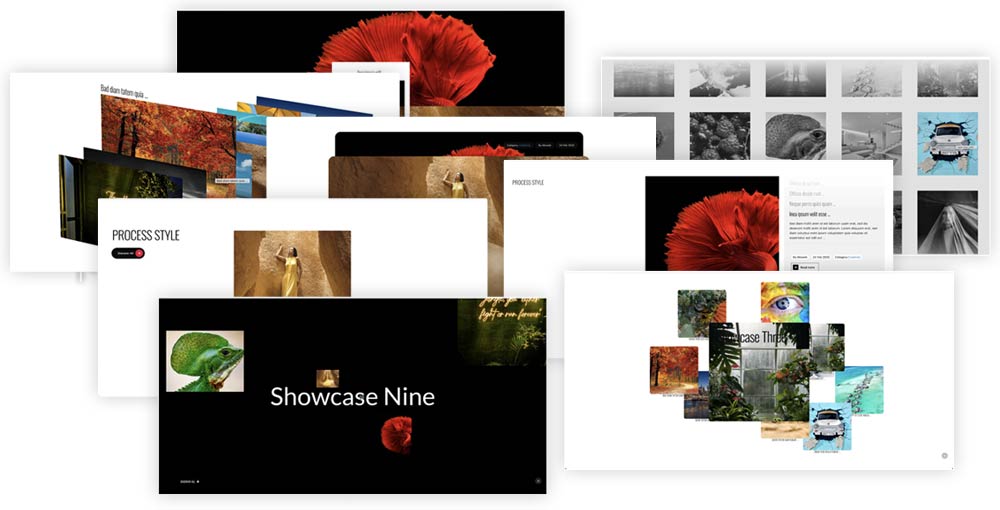

The GSAP Elements Joomla module offers a powerful suite of animation-driven styles and effects designed to enhance the visual appeal and interactivity of Joomla websites. By leveraging the robust GreenSock Animation Platform (GSAP), this module enables developers and designers to craft engaging preloaders, showcases, parallax effects, process flows, galleries, counters, and a variety of animated elements that captivate users.
What makes this module particularly versatile is its ability to display content seamlessly from Joomla Articles, Folder images or custom items defined directly within its parameters. This flexibility allows site creators to integrate dynamic animations without sacrificing content management convenience. Beyond basic animations, GSAP Elements introduces optional cursor effects and sophisticated image gel effects that add depth and tactile feedback to user interactions. Additionally, support for Google Fonts and adaptable layout settings ensures that the visual presentation remains stylish and consistent across different devices and screen sizes.
By blending powerful GSAP capabilities with Joomla’s content flexibility, it transforms static sites into vibrant digital experiences that invite exploration and delight visitors.
Check Online Module Settings - Edit and Preview
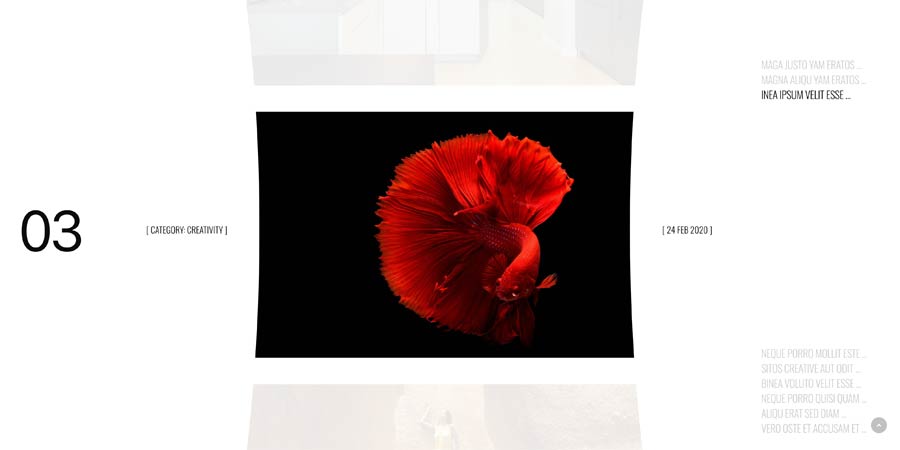
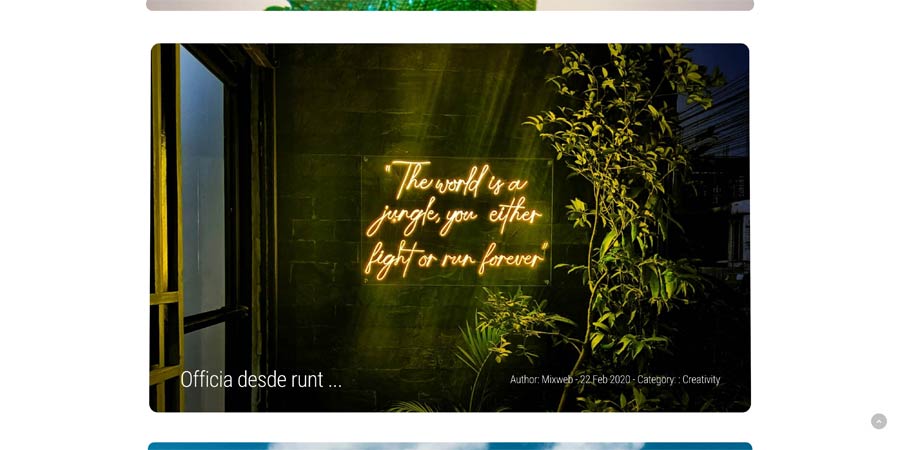
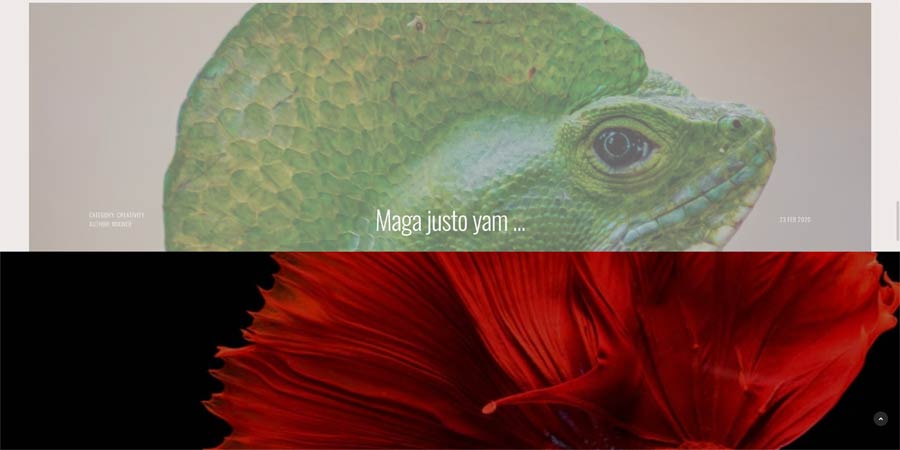
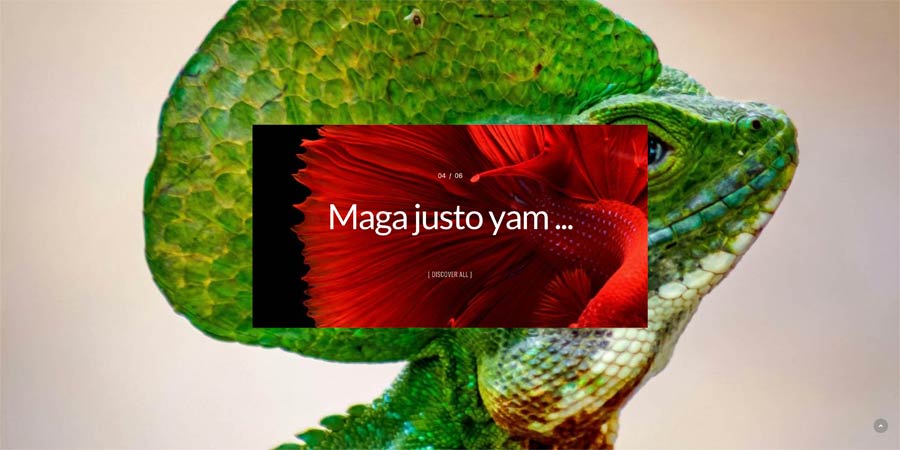
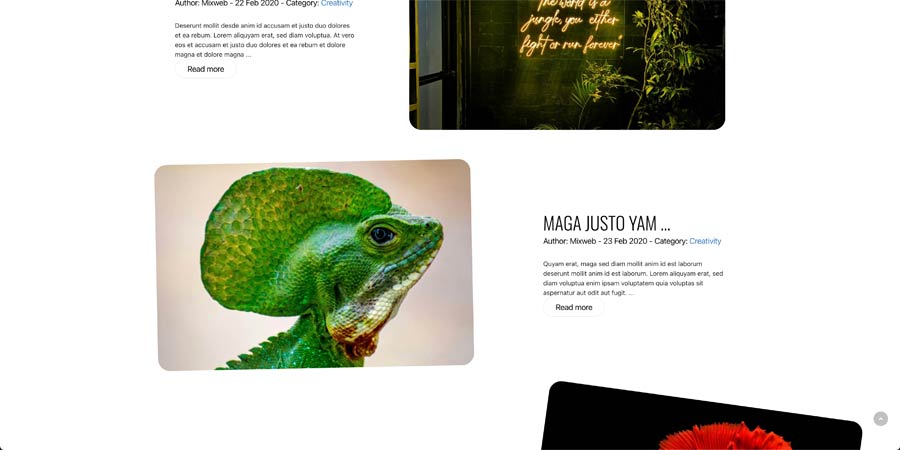
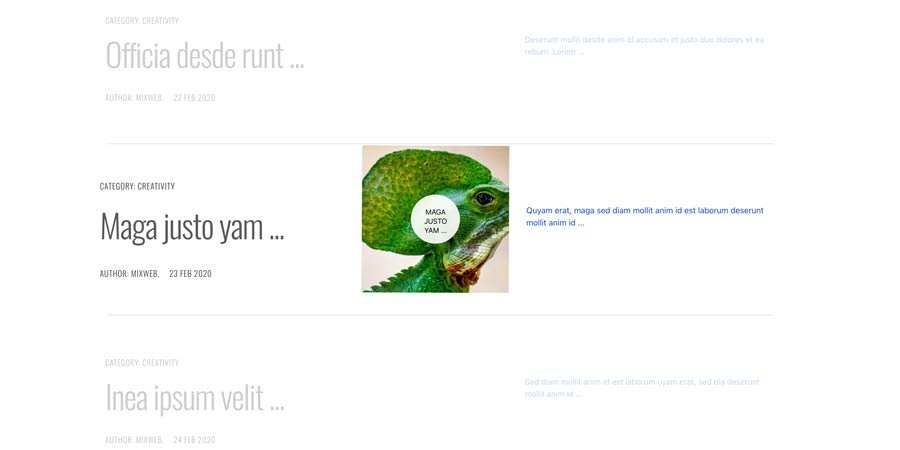
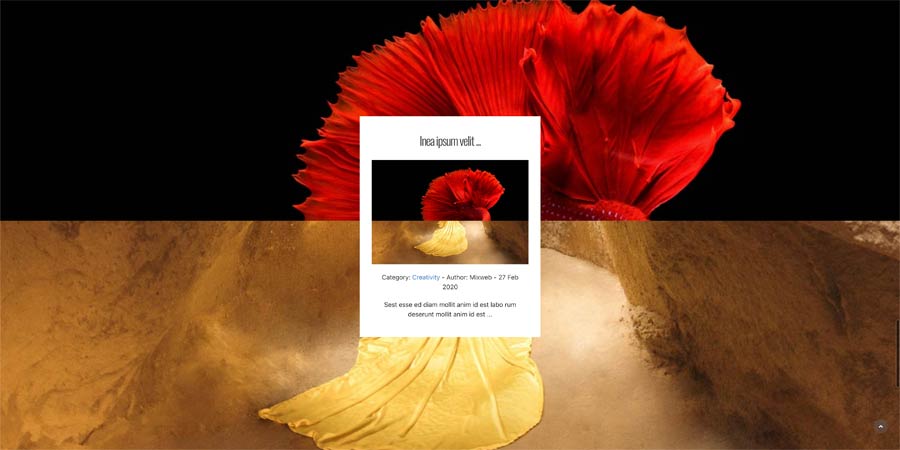
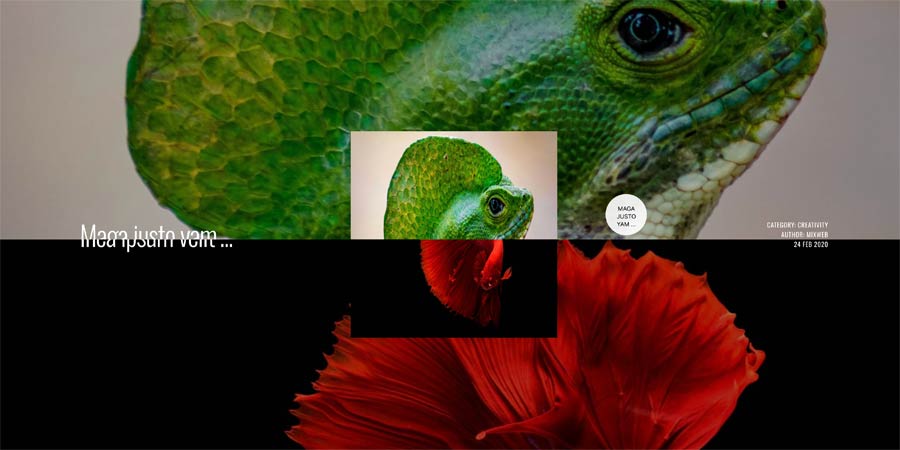
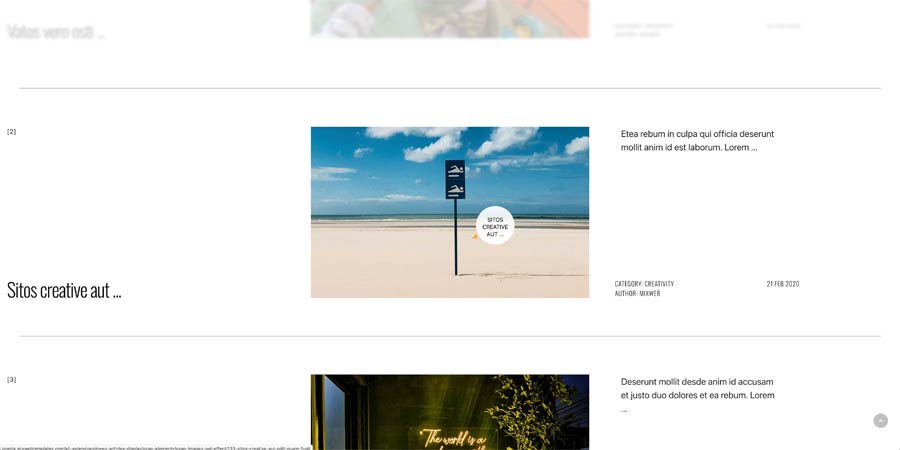
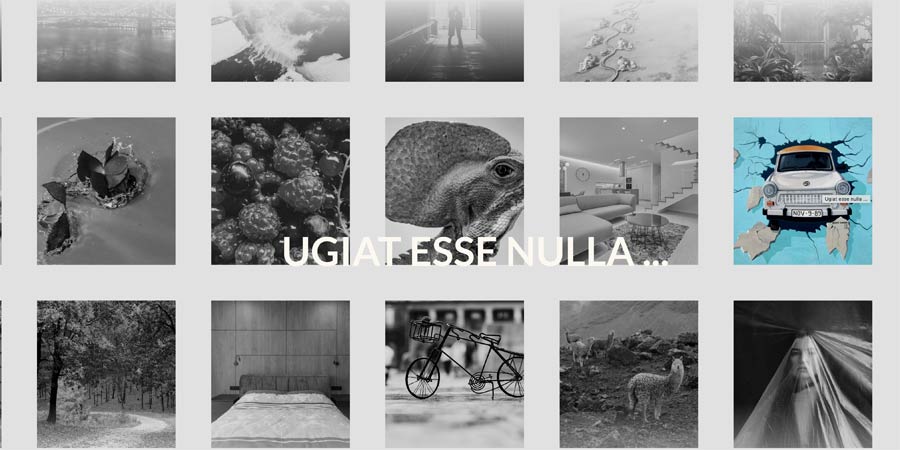
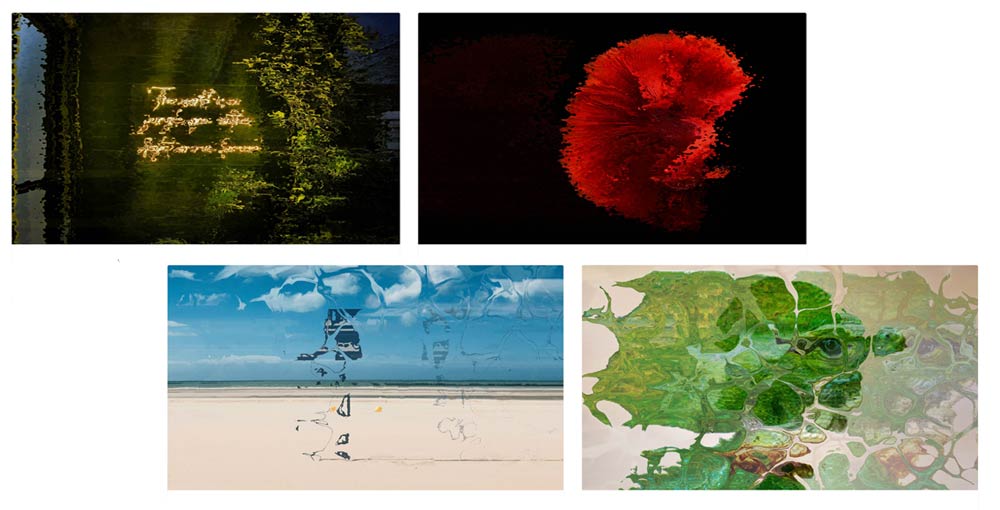
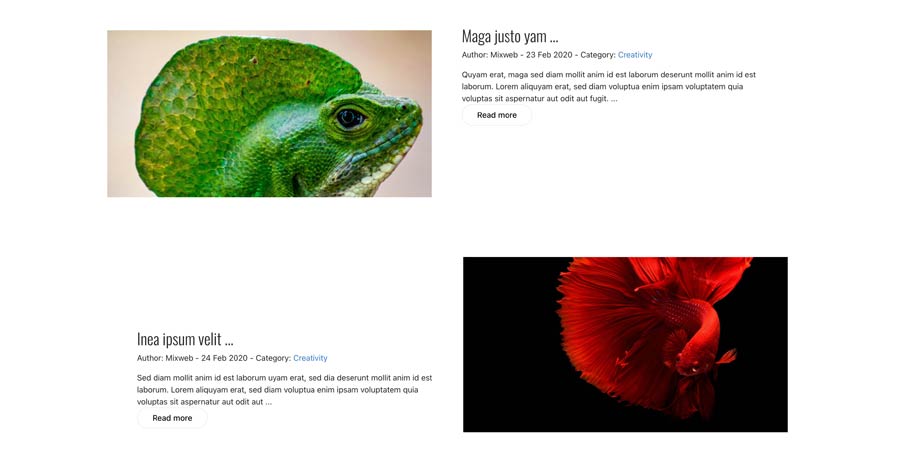
General Settings
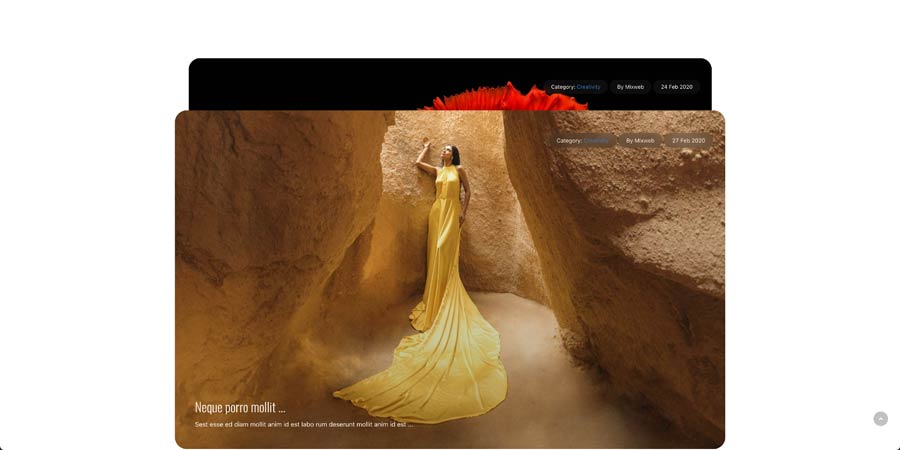
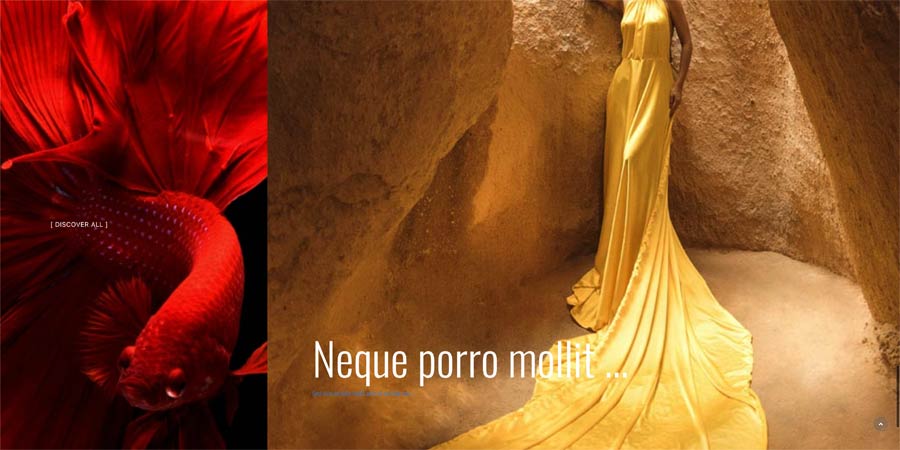
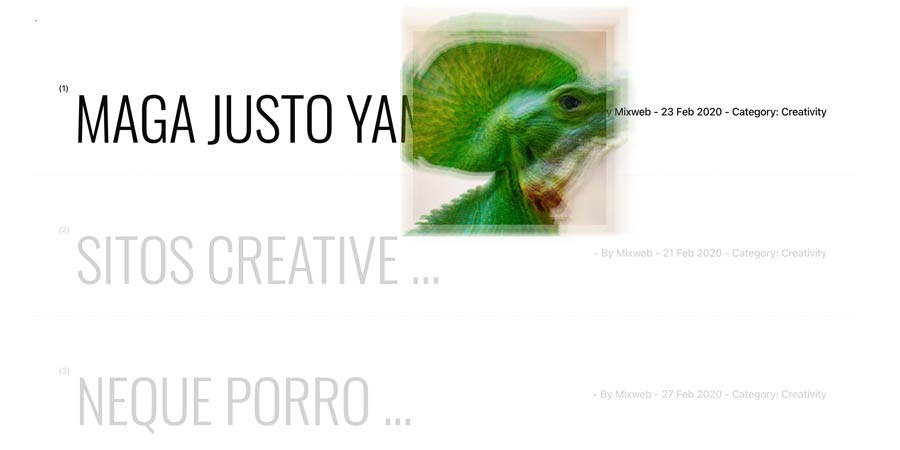
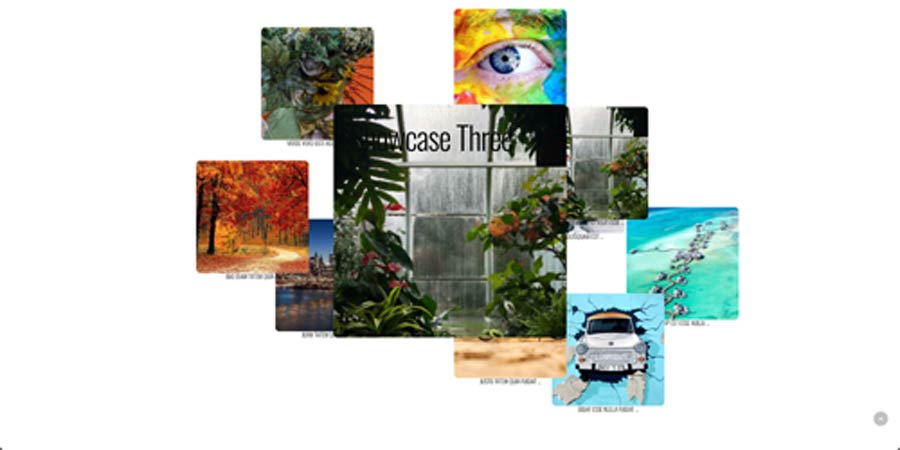
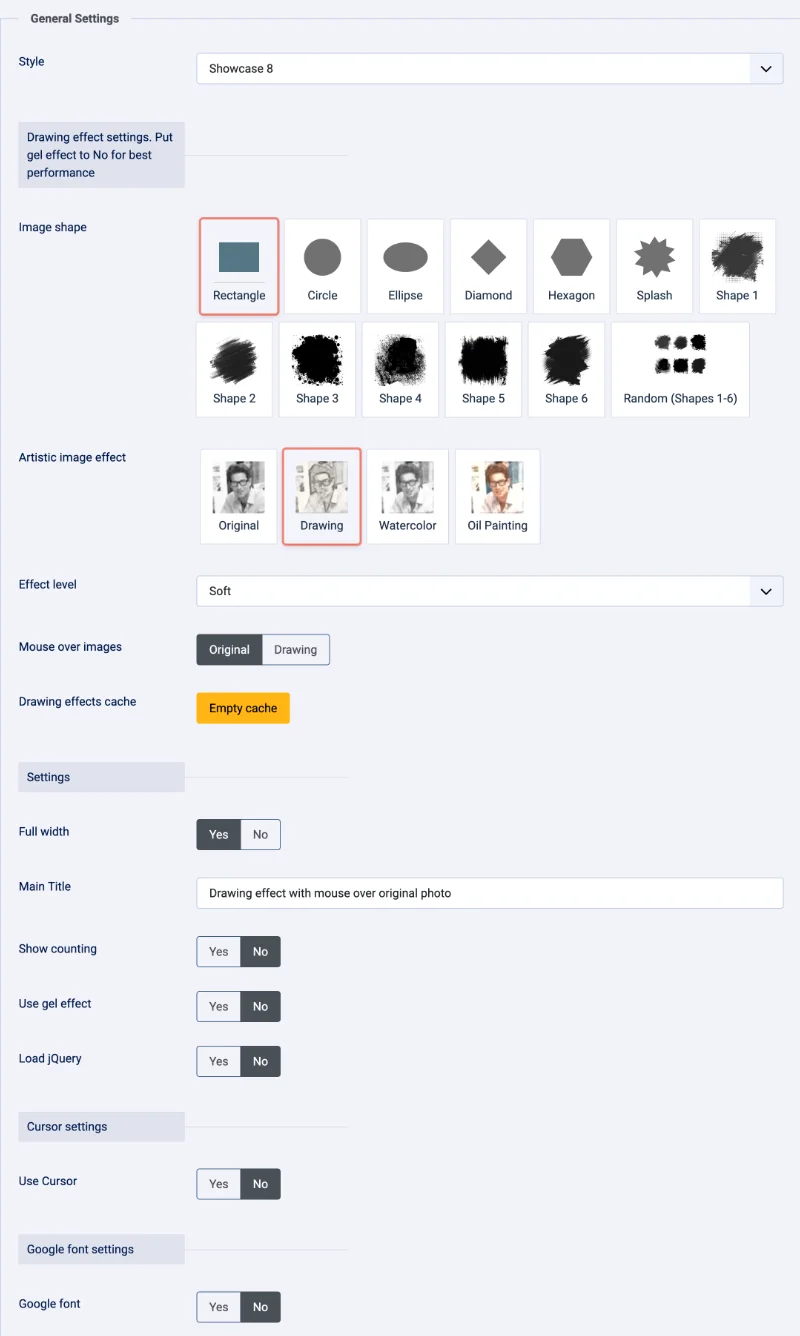
- Style - Select visual style (examples: `preloader`, `show`, `show1` ... `show13`, `slider reveal`, `parallax1`, `process`, `process_glitch`, `process2`, `project`, `carousel`, `skew`, `gallery`, `animate`, `counters`, `imggel`).
- Subforms used to add custom items (used when `Style` is `animate`, `counters` or when `Source` = Custom Items).
- Data source - Articles / Custom Items / Folder.
- Column width — Columns layout for counters (2..6 and variants).
- Full width — Module full width toggle (on/off).
- Main text — Main title shown on applicable styles.
- Show count — Toggle counting for specific styles.
- Top section, background image and informational text for certain styles (e.g., `process2`).
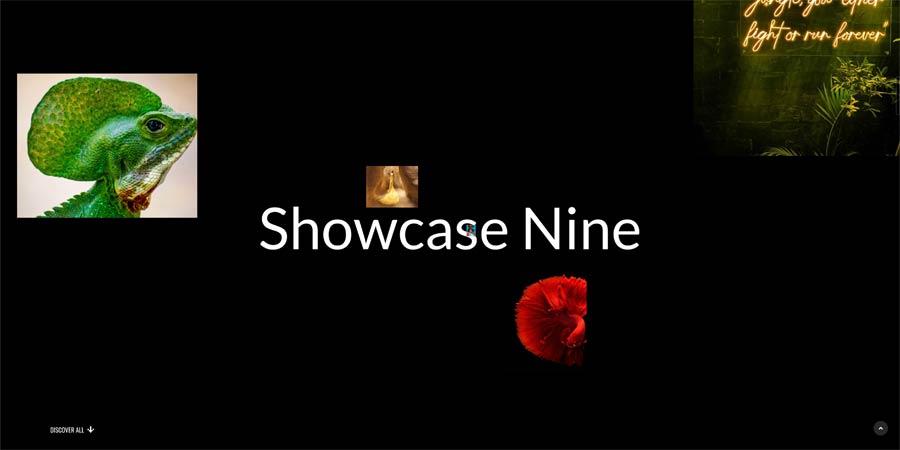
- Zoom-in last image option for `show9` style.
- Various image/background effects and effect selection.
- Speed — Parallax speed (for `parallax1`).
- Background color (RGBA) for some styles.
- Load jQuery` — Optionally load jQuery from module (enable only if needed).
- Enable custom cursor.
- Use item image as cursor - Yes / No
- Blend mode (normal or `difference`).
- Enable Google font.
- Font URL, family name and weight when `Google font` is enabled.

Data Source:
Articles
- Select Category
- Child Category Articles
- Category Depth
- Tag Filter
- Featured Articles
- Article Field to Order By
- Ordering Direction
- Count
- Open Link - New Window / Same Window / Popup window
- Article custom fields - Yes / No
- Category Title - Yes / No
- Item Title - Yes / No
- Title Max length
- Description display - Yes / No
- Description Max length
- Date display - Yes / No
- Date format - Yes / No
- Show Read More - Yes / No
- Images settings
- From Image Intro - Yes / No
- From Image Full text - Yes / No
- From Inline Intro text - Yes / No
- From Inline Full text - Yes / No
- Order to Get
- Resize Mode
- Image Width
- Image Height
Custom Items
- Select Image
- Title
- Info
- Main text
- Read more link
Folder source
In the module settings, set Source to Folder.
The selected folder and its subfolders are scanned recursively. Supported extensions are jpg, jpeg, png, gif, webp, bmp.
Folder filename format
Use the filename without its extension to provide the title, info and description:
01 - Title | Info || Main text.jpg
Use this recommended pattern:
ORDER - TITLE | INFO || DESCRIPTION.ext
Shapes, animation and Image effect
Image shape
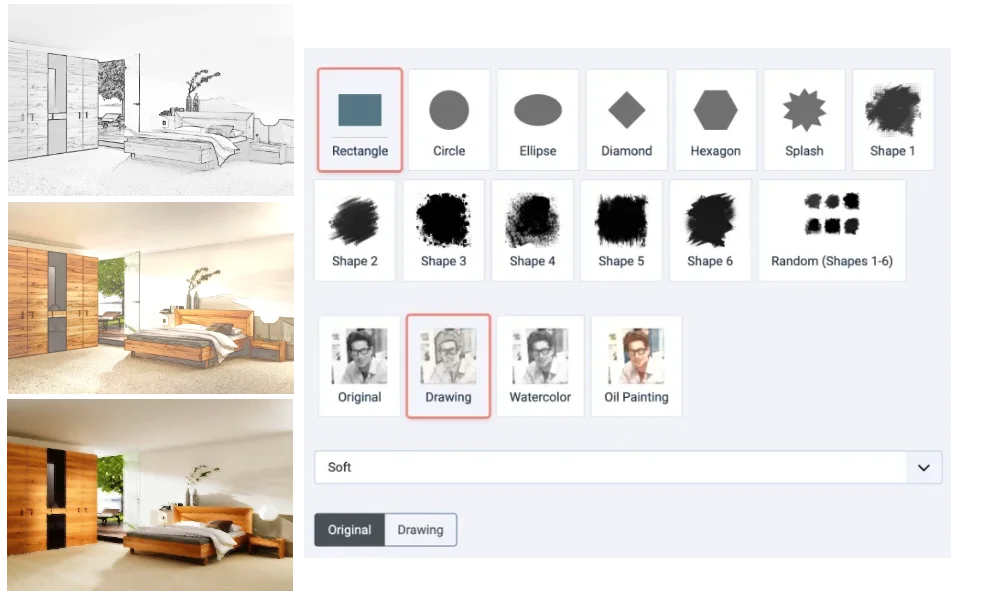
Image shape is available independently of the Drawing image effect. It clips or masks the original images without converting them into drawings. Available choices are Rectangle, Circle, Ellipse, Diamond, Hexagon, Splash, Shape 1 through Shape 6, and Random (Shapes 1-6). Random assigns mask shapes across the images.
Animate image contours
Draw the image contours with animated SVG strokes in colors sampled from the photo and after display the photo. Demo
Image effect
Image effect has three choices: Original (default), Drawing, and Watercolor, and Oil. The effect is separate from Image shape, so either setting can be used alone or both can be combined.
- Effect level: Soft, Light, Normal, Strong, or Very strong. It adjusts pencil line strength for Drawing and pigment strength, pooling, and paper texture for Watercolor.
- Mouse over images: Original (default) temporarily shows the source image when hovering over the team item; Drawing keeps the selected processed effect visible.
Showcase Style


Showcase1 Style
Showcase2 Style


Showcase3 Style
Showcase4 Style


Showcase5 Style
Showcase6 Style


Showcase7 Style
Showcase8 Style


Showcase9 Style
Showcase10 Style


Showcase11 Style
Showcase12 Style


Showcase13 Style
Parallax Style


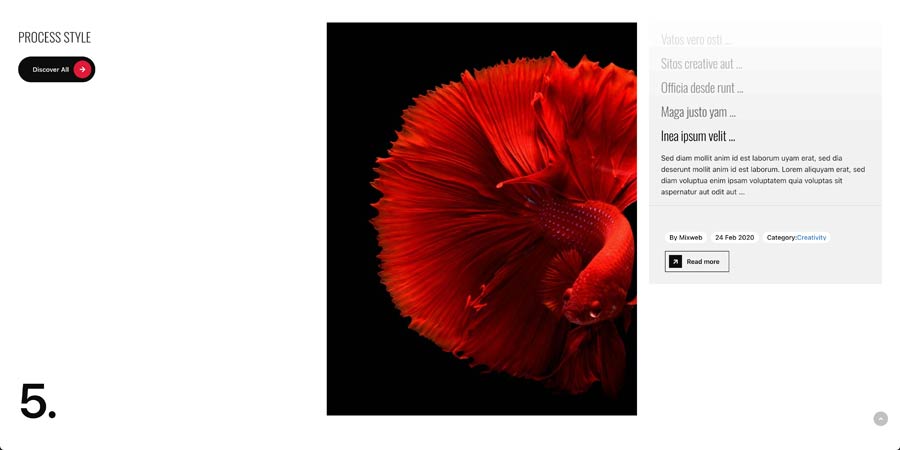
Process Style
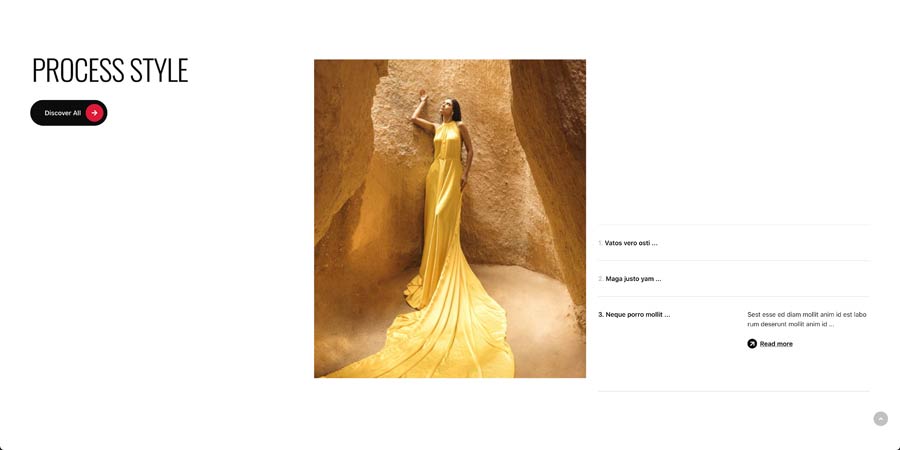
Process2 Style


Skew Style
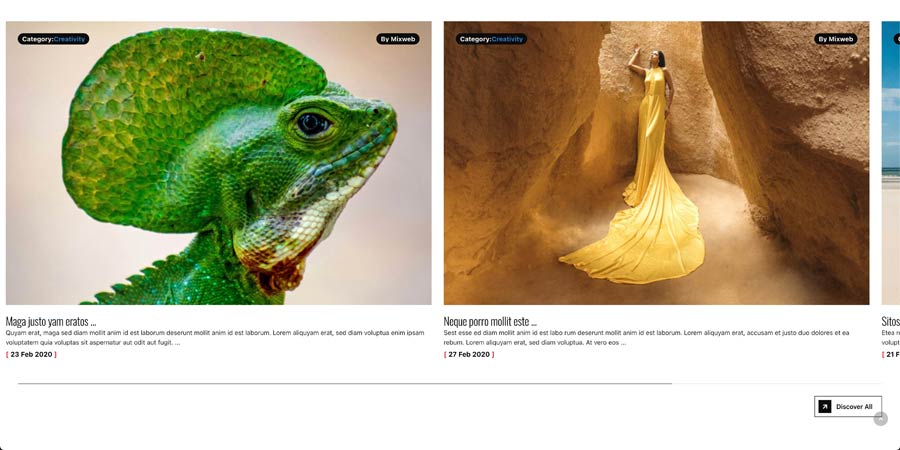
Project Style


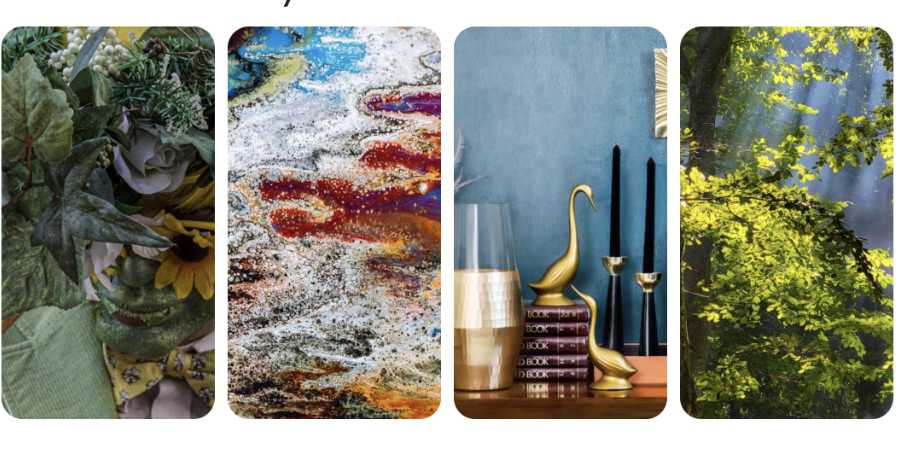
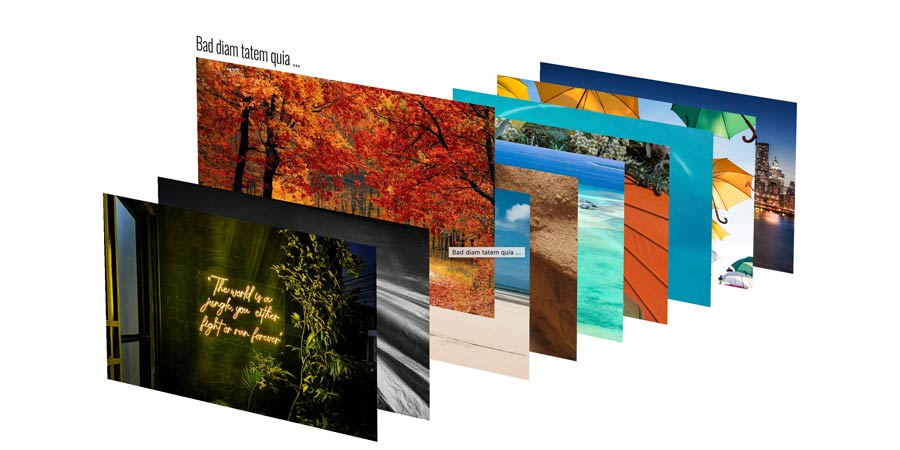
Gallery Style
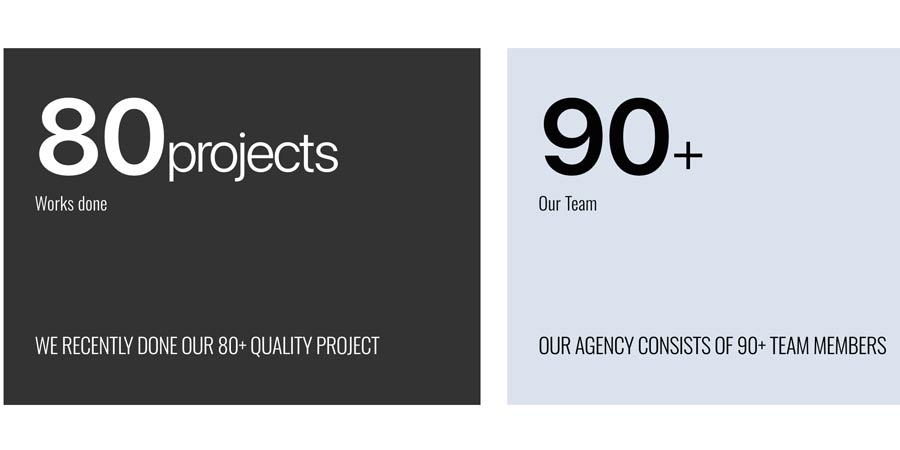
Counters Style


Images Gel Effect Style
Page Preloader Style


Carousel Style
Slider reveal