Add layout and content elements to Joomla articles and other rendered site content with bracket-style tags. The package includes two plugins: one processes the shortcodes, and the other helps you insert them from the editor.
The two plugins
Install and enable both plugins for the complete experience. They have separate roles:
- System - MX Shortcodes processes shortcode markup and renders the resulting content on public pages. Its settings, including Bootstrap loading and shortcode colours, are described below.
- Button Shortcode Generator (the MX Shortcodes editor button) adds a shortcode builder to supported Joomla content editors. It inserts shortcode markup into your content; it does not render the shortcode itself.
Using the shortcode button
- Open an article or other content item and place the cursor in the editor where you want the shortcode.
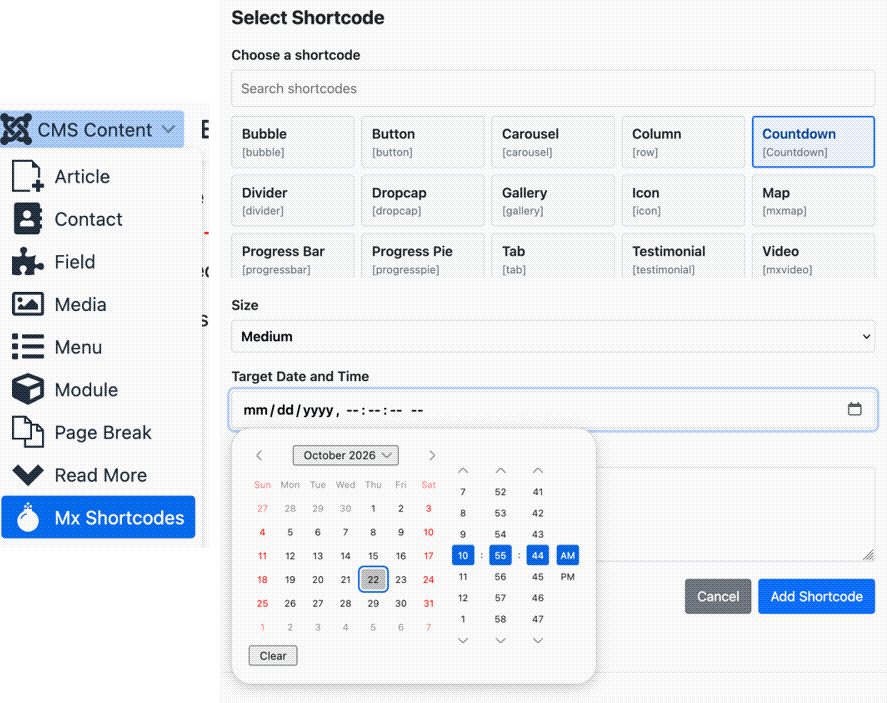
- Click the MX Shortcodes button, usually shown below the editor. Search for or choose a shortcode from the list.
- Fill in the fields shown. For shortcodes with repeatable items, use the provided Add control to include more items.
- Click Add Shortcode. The builder inserts the shortcode markup at the cursor; review it and add or edit any inner content as needed.
If the button is not available, check that Button Shortcode Generator is enabled and that the editor supports Joomla editor buttons. You can also type shortcode markup directly. The System - MX Shortcodes plugin must be enabled for that markup to be processed on public pages.
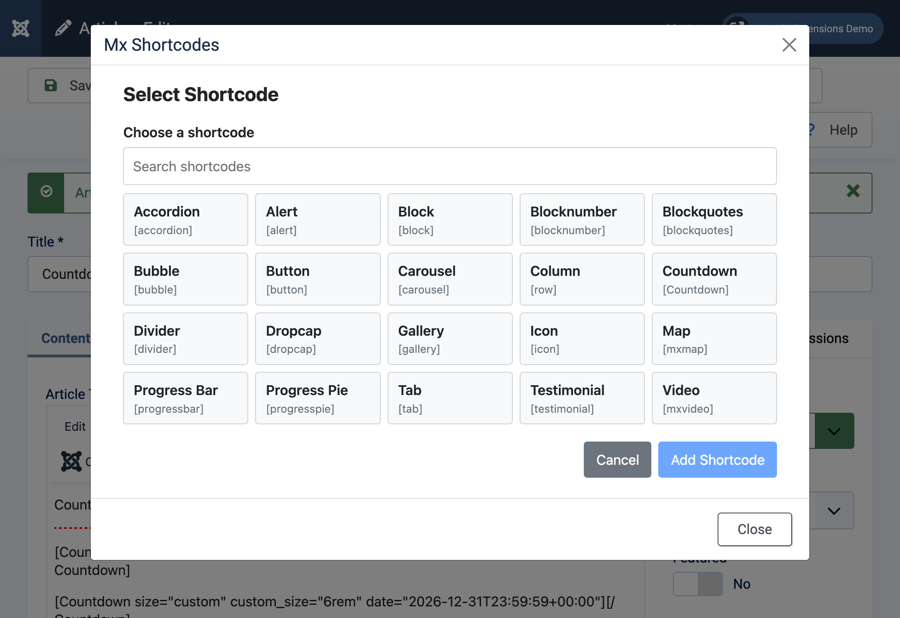
Shortcode index
Plugin settings
- Load Bootstrap 5 - Loads Bootstrap 5 CSS and JavaScript for the shortcode elements that use them. Enable only if the site template does not already load Bootstrap 5.
- Shortcode Background Color - Sets the
--mx-bgrcolorCSS variable used by shortcode styling. - Shortcode Text Color - Sets the
--mx-textcolorCSS variable used by shortcode styling.
Download include: Shortcodes plugin.